
Key takeaways
Most eSIM problems come from a setting, not a broken eSIM. If data does not work, turn on data roaming for the eSIM, set it as your data line and restart the phone. If the eSIM will not install, connect to Wi-Fi and check that the phone is unlocked. If it is slow, pick another network by hand or switch from 5G to 4G. Do not delete the eSIM to try again: some providers cannot reinstall it.
Affiliate disclosure
Vefru.com is supported through affiliate links and advertisements. When you click on affiliate links and make a purchase, we may earn a commission. These partnerships help us provide you with valuable content. Our commitment to unbiased information remains unchanged.
eSIM not working? Most problems have a simple fix that takes a few minutes, even abroad. This guide covers the four common cases: no option to add an eSIM, an install that fails, an installed eSIM with no data, and a weak or slow connection. It ends with fixes for specific providers, taken from our own tests of 14 travel eSIMs, and with tips for picking an eSIM that causes fewer problems in the first place.
Article Contents
No option to add an eSIM on your phone
If your phone shows no way to add an eSIM, you are looking in the wrong menu, the phone has no eSIM, or it is locked to your operator. Check them in that order.
1. Look in the right menu
Every phone puts the eSIM setting somewhere else. On an iPhone it sits under Mobile Data (Cellular in some regions), and on a Pixel it appears under SIMs as Download a new eSIM [4]. On a Samsung, go to Settings, Connections, SIM manager and tap Add eSIM [2]. Our guides to adding an eSIM on an iPhone and adding an eSIM on a Samsung show every screen.
2. Check that your phone has eSIM
Not every phone has eSIM. Dial *#06# in the phone app you use for normal calls. If a 32-digit number labelled EID appears next to the IMEI, your phone has eSIM [3]. No EID usually means no eSIM.
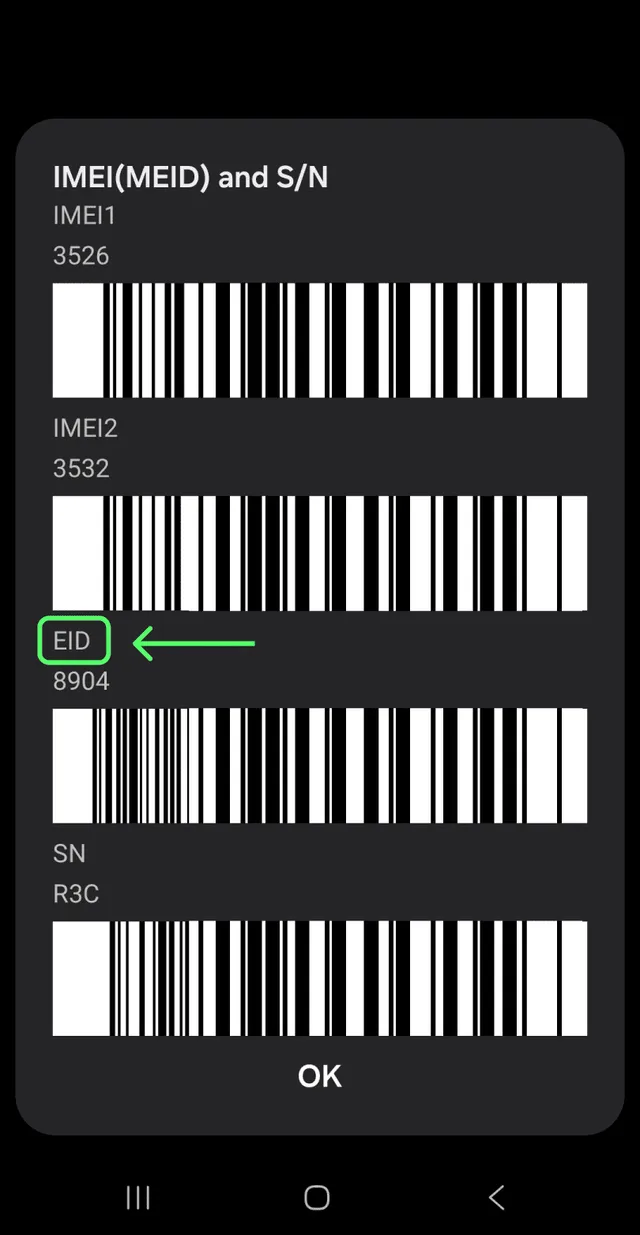
Where the phone was sold matters too. Most iPhones sold in mainland China have no eSIM; only a few recent models do [1]. Our list of phones with eSIM shows the exceptions brand by brand. If your phone has no eSIM, some older Android phones can take one through an add-on SIM card, which we tried in our eSIM.me test.
3. Check whether your phone is carrier-locked
A phone locked to your operator refuses eSIMs from other providers, even when it has eSIM. Airalo also rules out jailbroken iPhones and rooted Android phones [3].
On iPhone:
- Open Settings > General > About.
- Scroll down to Carrier Lock.
- If it says No SIM restrictions, your iPhone is unlocked [1].
- If it shows an operator name or a restriction, your iPhone is locked.
On Android:
- Open Settings > Connections > Mobile networks > Network operators.
- Start a network search.
- If you can pick networks from other operators, the phone is probably unlocked.
- If it connects only to your operator or shows an error, it is probably locked.
Fix: if your phone is locked, ask your operator to unlock it.
The eSIM will not install
An install that fails is usually a connection or code problem. Read the error, connect to Wi-Fi and check the code before you contact the provider.
1. Read the error message
The message on your phone often says what is wrong. Read it closely, because it may name the exact fix.
2. Connect to Wi-Fi
The phone downloads the eSIM profile from the internet, so it needs a stable connection. Use Wi-Fi: mobile data may not be stable enough for the install.
3. Check that the eSIM is not on another device
An eSIM works on one device at a time. If you already installed the same eSIM on another phone, remove it there first. Some eSIMs can be installed only once: in our tests the Holafly QR code could be scanned once, and a deleted Holafly or Global YO eSIM could not be reinstalled. In that case ask the provider for a new eSIM instead of retrying.
4. Check the QR code or activation code
Make sure you use the right QR code or activation code for this eSIM. If you only have an activation code and need a QR code, you can turn the code into a QR code yourself.
Tip: you can install an eSIM from a QR code on a screenshot too.
5. Remove old eSIMs you no longer use
Phones can store only a limited number of eSIMs. Delete old ones you will not use again to make room for the new one, but never the travel eSIM you are trying to set up.
6. Contact the eSIM provider
If nothing works, the eSIM itself may be faulty. Ask the provider for help or a replacement. Help desks differ a lot: in our tests eSIM4Travel and Saily put us through to a person who solved the problem, while Nomad's bot gave us no route to a human. Our test of eSIM help desks has the details.
eSIM installed, but data does not work
When the eSIM is on the phone but no data comes through, data roaming switched off is the most common cause. Go through these steps in order and test the connection after each one.
1. Turn on data roaming
A travel eSIM connects to a network abroad, so the phone treats it as roaming. With roaming off, it will not use data. Turning it on for the eSIM costs nothing extra; your home SIM can stay as it is, but your home operator may charge roaming for anything it uses.
On iPhone:
- Open Settings > Mobile Data > [your eSIM].
- Turn on Data Roaming.
On Android:
- Open Settings > Connections > Mobile networks > [your eSIM].
- Turn on Data roaming.
2. Make sure mobile data is on for the eSIM
Mobile data has to be on in general and set to the eSIM.
On iPhone:
- Open Settings > Mobile Data.
- Check that the main switch is on.
- Check that your eSIM is chosen for mobile data.
On Android:
- Open Settings > Connections > Mobile networks.
- Check that mobile data is on.
- Check that your eSIM is set as the main line for data.
3. Restart your phone
A restart often brings the network back and activates the eSIM.
4. Pick a network by hand
Automatic network selection does not always choose the best network. Check which networks your provider uses in that country (the plan summary where you bought the eSIM usually lists them) and pick one of them by hand.
On iPhone:
- Open Settings > Mobile Data > [your eSIM] > Network Selection.
- Turn off Automatic.
- Pick one of the listed networks.
On Android:
- Open Settings > Connections (or Network) > SIM cards > [your eSIM] > Network.
- Turn off Automatic.
- Pick one of the listed networks.
Our guide to eSIMs with several networks explains how switching works.
5. Check the APN
Some eSIMs need an APN (the access point name in your phone's mobile network settings) typed in by hand. The provider's install guide gives the right name. The ones we had to set in our tests are in the provider table below.
6. Switch off your physical SIM for a moment
On some phones the eSIM got data only after we turned the physical SIM line off. GigSky needed this toggle in our test, and Jetpac dropped data until we switched the physical SIM off.
7. Turn off VoLTE
VoLTE (voice calls over 4G) can clash with the data connection, especially abroad. Try turning it off for both the SIM and the eSIM.
On iPhone:
- Open Settings > Mobile Data > Mobile Data Options > Enable LTE.
- Choose Data Only instead of Voice & Data.
On Android:
- Open Settings > Connections > Mobile networks.
- Turn off VoLTE calls.
8. Check that the plan has started
Most plans start on first connection at your destination, but not all. GoMoWorld's plan does nothing until you press Start in its app, and our Yesim plan started at purchase. If the plan has not started or has already run out, no phone setting brings the data back.
Weak signal or slow eSIM data
If the eSIM works but crawls, reset the connection first, then try another network or network mode. On an unlimited plan, also check whether you have used the daily full-speed allowance, because most providers slow you to about 1 Mbps after it.
1. Turn Airplane Mode on and off
Turn on Airplane Mode for 30 seconds, then turn it off. This resets every network connection and often fixes a weak signal.
2. Restart the phone
A full restart can bring the connection back to normal speed.
3. Try another network mode
Switch between 5G, 4G/LTE and 3G to see which works best where you are.
On iPhone:
- Open Settings > Mobile Data > Mobile Data Options.
- Tap Voice & Data.
- Choose a mode (5G, LTE, 3G).
On Android:
- Open Settings > Connections > Mobile networks.
- Tap Network mode.
- Choose a mode (5G, LTE/4G, 3G).
4. Turn off 5G for now
Where 5G coverage is weak, 4G/LTE often gives a steadier connection. Our comparison of 4G and 5G explains the difference.
5. Pick another network by hand
If your provider uses several networks in the country, pick another one by hand as described above. One network may give better coverage or speed than another in the same place.
6. Turn off VoLTE
VoLTE can take up bandwidth and slow data down. Turning it off can speed data up, mainly where the signal is weak.
7. Check the daily allowance on unlimited plans
Most unlimited plans give a few GB a day at full speed, then slow down until the daily reset: 3 GB on Airalo, Jetpac and eSIM4Travel, 5 GB on most Saily plans and 2 GB on Nomad. In our test Holafly ran at about 30 Mbps from the start, on a cell where a local SIM got about 700 Mbps. Our data guide and calculator lists the allowances of every provider we tested.
Fixes for specific eSIM providers
Some problems belong to one provider. These are the ones we ran into when we bought and installed each eSIM ourselves, with the fix that worked.
| Provider | What we ran into | What fixed it |
|---|---|---|
| GoMoWorld | The eSIM does nothing after install | Press Start (or schedule a start) in the app; unstarted plans do not expire |
| Roamless | The preselected Roamless APN gave no data | Select the Proximus Internet APN with Wi-Fi off; speed tests worked only after we switched network by hand |
| Maya Mobile | No data after install | Set the APN to globaldata and turn on roaming yourself |
| Global YO | No data after install | Set the APN to globaldata and switch mobile data to the eSIM by hand |
| GigSky | No data at first | Set the APN to gigsky and toggle the physical SIM; keep the eSIM off until you travel, as the plan cannot be paused |
| Jetpac | Data dropped | Switch the physical SIM off |
| Ubigi | No data after install | Turn on mobile data and roaming yourself; Ubigi's help bot gives the APN mobiledata |
| Holafly | eSIM deleted by mistake | It cannot be reinstalled and the QR code scans once, so you need a new eSIM |
| Yesim | The plan started at purchase | Buy close to the trip or use the Activate later option |
| Nomad | Install prompt dismissed, no install button again | Install from the QR code in the email |
| ByteSIM | Automatic activation in the app failed | Install by hand from the QR code; the network came up in about a minute |
| Airalo | Some packages start on install | Check the activation line on the package page before you install at home |
Each provider's full test is in its review: GoMoWorld, Roamless, Maya Mobile, Global YO, GigSky, Jetpac, Ubigi, Holafly, Yesim, Nomad, ByteSIM and Airalo.
How to pick an eSIM that causes fewer problems
The easiest fix is an eSIM that works from the start. Three things help: a provider that travelers report working in your destination, a help desk with real people, and a plan that fits your trip.
eSIM comparison tool
Our comparison tool lists eSIM plans for any data size, plan length and country, and for several countries at once. For each provider it also shows how often travelers reported the eSIM working in that country.
Country guides
Our country guides rank providers on traveler reports from that country, for example the best eSIM for Mexico, for Vietnam and for the USA. They also cover the local networks and set-up steps.
Provider reviews
We buy every eSIM with our own money and test the purchase, app, install, help desk and speed. Read our tests of Airalo, Holafly, Saily and eSIM4Travel, or see all results in our ranking of tested providers. A provider with a good help desk saves the most time when something does go wrong.
Frequently Asked Questions About eSIM Problems
How do I check if my phone has eSIM?
What should I do if I can't install an eSIM?
Why isn't my eSIM data working abroad?
Can I delete an eSIM and install it again?
Why is my eSIM so slow?
Do I need to set an APN for my eSIM?
Sources
We cite only the phone makers' and eSIM providers' own pages. Findings from our own tests carry no number.
Links last checked
Opens in a new tabOfficial phone maker and provider pages
-
1
Use eSIM while traveling internationally with your iPhone
How to check the carrier lock on an iPhone and which iPhones sold in mainland China work with eSIM, as stated by Apple.
-
2
Galaxy eSIM and supported network carriers
Where to add an eSIM in the settings of a Galaxy phone, as stated by Samsung.
-
3
What devices support eSIM?
The *#06# EID check and the exclusion of carrier-locked, jailbroken and rooted phones, as stated by Airalo.
-
4
Device compatibility
Where to find the option to add an eSIM on iPhone and Pixel phones, as stated by Airalo.